
When you’re building a game for YouTube Playables, one of the first things you’ll run into is the size question. You test your game locally, everything runs great on your machine, and then you package it up and realize the build is way bigger than you expected. That’s a problem, because Playables games need to load almost instantly inside the YouTube app. If your files are bloated, users will bounce before the first frame even shows up.
The relationship between game file size and performance is pretty direct. Large images and textures take time to download and decode. Heavy JavaScript bundles slow down initialization. Uncompressed audio files eat up bandwidth. Custom fonts add extra requests. And unused assets that you forgot to remove from your build folder just sit there making everything worse, especially on mobile devices where network conditions aren’t always ideal.
This guide walks through what you actually need to know about the YouTube Playables game size limit, how to figure out what’s making your build large, and how to trim it down without breaking your game.
YouTube Playables Game Size Limit
Google’s official documentation for Playables certification is clear about the size constraints. There are actually several different limits you need to track, not just one.
The initial bundle size—everything that loads before your game signals it’s ready for interaction—must be under 30 MiB . That’s a hard requirement. Google also recommends keeping it under 15 MiB for better performance . Some developers aim even lower. The team behind Arrow Cube 3D, a puzzle game on Playables, kept their initial build around 3 MB and pushed the rest of their content into lazy-loaded level data .
The total package size has a default cap of 250 MiB . This is the full ZIP you upload, including everything that might load later during gameplay. Individual files within your package cannot exceed 30 MiB, and Google recommends keeping each file under 512 KiB . That last one catches a lot of developers off guard. If you have a single background music track that’s 5 MB, you’re technically under the hard limit but way over the recommendation. And no, you can’t get an exemption for individual file sizes—that’s a hard limit .
There’s also a constraint on the number of files: less than 8,000 total . That might sound like a lot until you realize texture atlases and audio sprites can generate hundreds of small files depending on how you export.
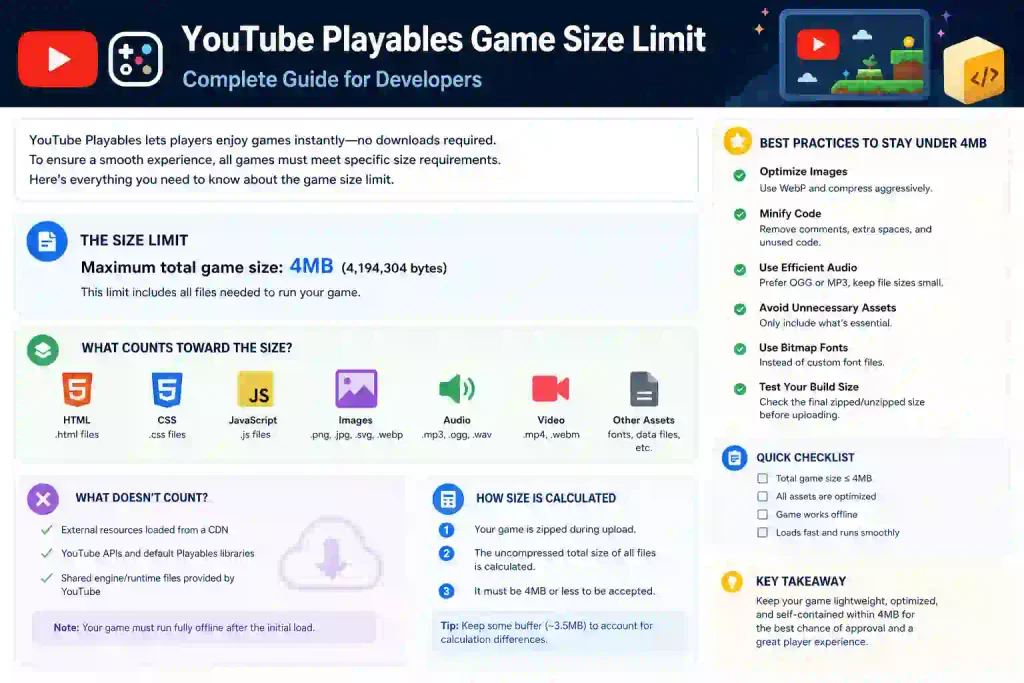
The key distinction here is between what you must do to pass certification and what you should do to make your game actually feel good. The 30 MiB initial limit is a requirement. Keeping your initial load under 15 MiB is a recommendation that matters a lot for user experience. The difference between a game that takes 2 seconds to load and one that takes 8 seconds is the difference between someone playing your game and someone scrolling past it.
What Makes a YouTube Playables Game Large?
Before you can fix your size problem, you need to know where the bloat is coming from. Most large Playables builds have the same usual suspects.
Images and Textures
PNG files are often the biggest offender. Developers export sprites and backgrounds as full-resolution PNGs without thinking about it. A single 2048×2048 texture can easily hit 5–10 MB. If you have several of those, you’re already in trouble. JPEG works for photographic backgrounds but creates artifacts on pixel art or UI elements with sharp edges. WebP is usually the better choice for both quality and compression, though you need to check engine support. Sprite sheets and texture atlases reduce the number of individual files and can dramatically cut overhead, but only if you’re actually using them efficiently.
Audio Files
Music tracks and sound effects add up fast. A single three-minute song at 320 kbps is around 7 MB. If you have multiple tracks plus dozens of sound effects, audio alone can push your package over the limit. Uncompressed WAV files are even worse—a one-minute WAV can be 10 MB or more.
JavaScript and Game Libraries
Modern game engines export large JavaScript bundles by default. If you’re using a framework and not tree-shaking or minifying, you’re shipping code your game never actually runs. Unused dependencies, debug libraries, and full-featured engine builds all contribute to a bloated initial load.
Fonts and Other Assets
Custom font files can be 100 KB to 500 KB each, and if you’re loading multiple weights or character sets, that adds up. Video files, duplicate assets across folders, source files accidentally left in the export, and test assets are all common sources of unnecessary size.
How to Reduce YouTube Playables Game Size Step by Step
Here’s a practical workflow you can follow to get your build under control.
Step 1: Check the Final Build Size
Don’t look at your development project. Export the production build exactly as you would upload it, then check the actual file sizes. Most engines have a build report or you can just look at the output folder. Note the total ZIP size, the largest individual files, and the number of files.
Step 2: Remove Unused Files
Go through your build output and look for anything that doesn’t need to be there. Source files (.psd, .aseprite, .blend), debug symbols, source maps, test levels, and assets from cut features are all fair game for deletion. If your engine has an asset dependency checker, use it. If not, manually cross-reference what’s actually referenced in your code versus what’s in the folder.
Step 3: Compress Images
Convert PNGs to WebP where quality allows. For pixel art, PNG with proper palette optimization works well. For photographic textures, JPEG at 80–85% quality is often indistinguishable from the original. Combine individual sprites into atlases. Resize textures to the maximum size they’ll actually be displayed—there’s no point shipping a 4K texture for a mobile game that renders it at 512×512.
Step 4: Optimize Audio
For music, 128–192 kbps MP3 or OGG is usually fine for a casual game. For sound effects, lower bitrates work because they’re short and often layered under other sounds. Consider using a single audio sprite (one file containing multiple sounds with defined start/end points) instead of dozens of individual files.
Step 5: Reduce JavaScript Bundle Size
Enable minification in your build settings. If your engine supports tree-shaking, turn it on. Remove unused plugins and libraries. If you’re using a custom build of an engine, strip out features your game doesn’t use.
Step 6: Load Assets Efficiently
Not everything needs to load at startup. Put the core gameplay assets in your initial bundle, then lazy-load additional levels, music tracks, or optional content after the player starts interacting. The Arrow Cube 3D developers did this by keeping a tiny core build and loading level data in batches .
Step 7: Test the Production Build
Once you’ve optimized, test the actual ZIP you plan to upload, not your dev build. Run it through the Playables test suite or a local server with compression enabled to get an accurate picture of the initial load size .
Recommended Game Size Optimization Checklist
- □ Check final ZIP size against the 30 MiB initial load limit
- □ Remove unused images, sounds, fonts, and test assets
- □ Convert PNGs to WebP or optimized JPEGs where appropriate
- □ Combine sprites into texture atlases
- □ Compress music to 128–192 kbps and SFX to lower bitrates
- □ Minify JavaScript and enable tree-shaking
- □ Remove unused libraries and engine modules
- □ Subset custom fonts to only the characters you need
- □ Remove source maps and debug files from the production build
- □ Test loading time on a mid-range mobile device
- □ Verify the production build loads correctly through the test suite
Does Smaller Game Size Always Mean Better Performance?
No, and it’s worth understanding why.
A smaller download means faster initial load, which is critical for the 5-second interaction requirement . But once the game is running, performance depends on other factors: JavaScript execution speed, memory usage, texture rendering, and how many assets you’re keeping in memory at once.
You could have a 10 MB game that stutters because it’s loading a massive texture atlas into memory. You could have a 25 MB game that runs smoothly because it streams assets efficiently and keeps its active memory footprint low. The JavaScript heap limit is 512 MB, so you can’t just keep everything in memory regardless of download size .
The distinction matters when you’re optimizing. Reducing download size helps with loading. Reducing runtime memory and CPU usage helps with smooth gameplay. You need to think about both, but they’re not the same problem.
Common Game Size Mistakes Developers Should Avoid
Uploading your development folder instead of the production build is probably the most common mistake. Dev builds include source maps, uncompressed assets, and debug code that doesn’t belong in a submission.
Keeping unused assets “just in case” is another one. If it’s not referenced by your game, it shouldn’t be in the build. Huge PNG files that should be compressed, uncompressed WAV audio, loading every asset at startup instead of lazy-loading, adding libraries you don’t need, keeping source maps and debug files in production, and using oversized textures for small on-screen elements are all easy mistakes to make and easy to fix once you know to look for them.
Final Pre-Submission Checklist
Before you upload, run through this quick list:
- Your initial bundle loads before
gameReadyis under 30 MiB (ideally under 15 MiB) - No individual file exceeds 30 MiB
- Total package is under 250 MiB
- File count is under 8,000
- All paths are relative, no absolute paths
- File names contain only alphanumeric characters and
_,-,. - The game loads and becomes interactive within 5 seconds
- You’ve tested the actual production ZIP, not your dev build
- The SDK integration handles pause, resume, mute, and audio state correctly
Frequently Asked Questions
What is the YouTube Playables game size limit?
The initial bundle must be under 30 MiB, with a recommendation to keep it under 15 MiB. Total package size is capped at 250 MiB by default, and individual files cannot exceed 30 MiB .
Does game size affect Playables loading speed?
Yes, directly. The initial bundle size determines how long users wait before they can interact. Smaller builds load faster, and the platform requires games to be interactive within 5 seconds .
How can I reduce my HTML5 game file size?
Remove unused assets, compress images to WebP or optimized JPEG, compress audio, minify JavaScript, enable tree-shaking, and lazy-load non-essential content after the initial startup.
Should I compress images before submitting a Playables game?
Absolutely. Compressing images is one of the most effective ways to reduce package size. WebP generally offers the best balance of quality and compression for most game assets.
Can large audio files increase the game package size?
Definitely. Music tracks and sound effects are common sources of bloat. Compressing audio to appropriate bitrates and using audio sprites instead of individual files can significantly reduce your package size.
Conclusion
The size constraints for YouTube Playables aren’t arbitrary. They exist because users expect instant access, and any friction in loading means they’ll move on. The 30 MiB initial limit and 250 MiB total package cap are the hard numbers you need to work within, but the real goal is making your game feel responsive.
The practical approach is straightforward: know what’s in your build, cut what doesn’t need to be there, compress what remains, and load things only when they’re needed. A game that starts in 2 seconds and loads additional content in the background will always outperform one that makes users wait 10 seconds for everything upfront.
If you’re preparing a game for Playables submission, start by auditing your production build. You’ll almost certainly find files you forgot about and compression opportunities you missed. Fix those first, then test the actual ZIP through the Playables test suite. That’s the build YouTube will see, and it’s the one that needs to pass.