How to Upload Game in YouTube Playables ?
Developers often ask a simple question: Can I upload a game to YouTube the same way I upload a video?
The short answer is no.
As of 2026, YouTube Playables is not a fully open publishing platform where any developer can instantly upload a game. Access is generally limited to selected partners, publishers, and developers who are approved through YouTube’s internal onboarding and partnership processes.
That said, developers can still prepare their games according to Playables requirements so they are ready if an opportunity becomes available.
This guide explains the practical workflow used by HTML5 game developers—from building and optimizing a game to preparing it for potential YouTube Playables review.
How to Upload a Game to YouTube Playables – What You Need
Before thinking about YouTube Playables approval, focus on building a high-quality browser game.
A typical development setup includes:
- A PC or laptop
- Basic HTML, CSS, and JavaScript knowledge
- A game engine such as Construct 3, Phaser, Unity WebGL, or GDevelop
- A code editor like VS Code
- A hosting platform such as GitHub Pages, Netlify, Firebase, or Vercel
You do not need a large studio or a complex multiplayer game. Many successful browser games start with simple concepts such as:
- Puzzle games
- Endless runners
- Arcade games
- Casual tapping games
- Logic-based challenges
The most important goal is creating a game that is fast, responsive, and enjoyable to play.
⚠️ Developer Note:
A polished simple game usually performs better than a complicated game with slow loading times and technical issues.
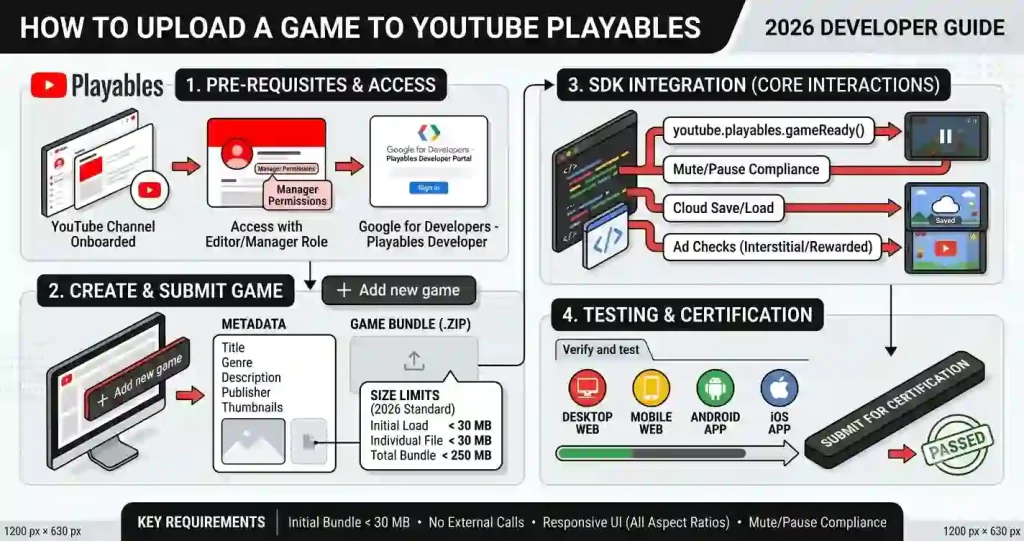
Step 1: Prepare Your Game Files
Before any submission or testing process, your project files should be properly organized.
A clean project structure helps with maintenance, debugging, and future updates.
Example structure:
game-project/
│
├── index.html
├── css/
├── js/
├── images/
├── audio/
└── assets/
Your main entry file should always be:
index.htmlThis file acts as the starting point for the browser when loading your game.
Before moving forward, verify:
✔ All assets load correctly
✔ No broken file paths exist
✔ Controls work properly
✔ Scoring systems function correctly
✔ Game-over logic behaves as expected
✔ Mobile screens display content properly
A few minutes of testing here can save hours of debugging later.
HTML5 and WebGL Requirements
YouTube Playables games are based on web technologies, which means browser compatibility is critical.
HTML5 Requirements
Your game should:
- Run directly inside modern browsers
- Support responsive screen sizes
- Work on both desktop and mobile devices
- Avoid requiring downloads or installations
WebGL Requirements
If your game uses advanced graphics, animations, or 3D effects, WebGL becomes important.
WebGL allows browsers to render graphics using the device’s GPU, resulting in:
- Better frame rates
- Smoother animations
- Improved visual quality
However, visual quality should never come at the cost of performance.
A game running at a stable 60 FPS is usually more valuable than a visually impressive game that lags on mid-range devices.
⚠️ Important:
Always test your game on lower-end Android devices. Many Playables users do not have flagship smartphones.
Packaging Your Game Into a ZIP File
Once development and testing are complete, package your project correctly.
Before creating a ZIP file:
- Verify that
index.htmlis in the root directory. - Confirm all assets are included.
- Remove unused files.
- Remove temporary development folders.
Then compress the project folder into:
your-game.zipAfter creating the ZIP file, extract it once and run the game locally.
This final check helps detect:
- Missing assets
- Broken links
- Incorrect folder structures
If everything works correctly after extraction, the project is ready for hosting and further testing.
Step 2: Integrate the YouTube Playables SDK
After preparing your game, the next stage is SDK integration.
The SDK acts as a communication layer between your game and the YouTube Playables environment.
Its primary responsibilities include:
- Detecting when a game is ready
- Managing pause events
- Managing resume events
- Synchronizing game state with the platform
Without proper SDK integration, platform-level functionality may not work correctly.
Initializing the SDK
The exact implementation may vary depending on the SDK version provided by YouTube.
A simplified initialization example looks like this:
// Example SDK Initialization
youtube.playables.sdk.initialize();
This tells the platform that your game is starting its setup process.
Initialization should happen only after critical systems are loaded.
Examples include:
- Asset loading
- Audio initialization
- Save systems
- User interface setup
Setting Up Core SDK Methods (gameReady)
One of the most important SDK methods is:
youtube.playables.sdk.gameReady();
This method signals that:
- Assets are loaded
- Game systems are active
- Players can begin interacting
Example:
// Notify YouTube that the game is fully loaded
youtube.playables.sdk.gameReady();
A common mistake is triggering this method too early.
Always wait until:
- Images are loaded
- Audio is prepared
- Menus are initialized
- Essential scripts are ready
Only then should gameReady() be called.
⚠️ Developer Tip:
CallinggameReady()before loading finishes can create startup issues and inconsistent user experiences.
Handling Audio and Pause States
When users switch tabs, receive interruptions, or when the platform pauses the game, your game should react appropriately.
Pause Example
youtube.playables.sdk.onPause(() => {
    game.pause();
});
Resume Example
youtube.playables.sdk.onResume(() => {
    game.resume();
});
When the game is paused:
- Audio should stop
- Timers should freeze
- Animations should pause
- Gameplay should not continue in the background
When the game resumes:
- Audio should restart smoothly
- Animations should continue
- Timers should resume correctly
Proper state management improves performance, reduces battery usage, and creates a more professional user experience.
⚠️ Important Note:
The SDK examples shown above are simplified educational examples. Actual implementation details may vary depending on the Playables SDK version and access provided by YouTube.
Step 3: Access the YouTube Playables Program
This is the section where many developers become confused.
A common misconception is that YouTube Playables offers a public dashboard where anyone can sign in, upload a game, and publish it immediately. As of 2026, that is generally not how the process works.
YouTube Playables access is typically available through selected partnerships, beta programs, publishing relationships, or direct invitations from YouTube and Google teams. Because of this, developers should focus on building a high-quality HTML5 game first rather than searching for a public upload button that may not be available to them.
⚠️ Important Note:
As of 2026, YouTube Playables does not provide a fully open self-service publishing system for all developers. Access requirements and onboarding processes may change over time.
Understanding the Approval Process
Before investing significant time into Playables-specific development, it is important to understand how approval generally works.
YouTube typically evaluates factors such as:
- Technical quality
- Mobile compatibility
- Loading performance
- User engagement potential
- Content safety
- Platform compliance
Developers with existing browser games, strong portfolios, or successful gaming projects may have a better chance of being considered for future opportunities.
Instead of focusing only on submission, focus on creating a game that demonstrates:
- Smooth gameplay
- Reliable performance
- Professional design
- Good retention potential
These factors are often more important than simply having a completed game.
Preparing Your Developer Information
If YouTube or an approved partner requests information about your project, having your developer profile prepared in advance can save time.
Typical information may include:
Basic Information
- Full Name
- Studio or Brand Name
- Email Address
- Country or Region
Professional Information
- Portfolio Website
- GitHub Profile
- Published Games
- Game Development Experience
Project Information
- Game Title
- Genre
- Engine Used
- HTML5/WebGL Compatibility
- Mobile Support
Keeping this information organized makes future onboarding processes much easier.
Creating Your Game Profile
Once access is granted through an approved channel, you may be asked to provide details about your game.
Your game profile should clearly communicate:
- What the game is
- Who the target audience is
- How the gameplay works
- Which devices are supported
Typical profile elements include:
- Game Title
- Genre
- Supported Languages
- Supported Devices
- Short Description
- Promotional Images
If screenshots are requested, use images that clearly show actual gameplay rather than promotional artwork only.
💡 Developer Tip:
Gameplay screenshots usually provide more value during reviews than heavily edited marketing graphics.
Filling Out Game Metadata
Metadata helps reviewers understand your game quickly.
A strong title should be:
✔ Easy to understand
✔ Relevant to gameplay
✔ Short and memorable
Examples:
- Endless Jump Adventure
- Puzzle Master
- Speed Runner 3D
Writing Better Descriptions
Instead of writing generic descriptions, explain exactly what players do.
Weak Example:
“An exciting game with lots of fun.”
Better Example:
“Players dodge obstacles, collect coins, and compete for high scores in a fast-paced endless runner designed for mobile devices.”
Suggested Keywords
- HTML5 Game
- Browser Game
- Casual Game
- Mobile Game
- Arcade Game
- Puzzle Game
Avoid keyword stuffing. Use only keywords that accurately describe your game.
Step 4: Upload and Test Your Game
Before any review process, your game should be hosted online so it can be tested easily.
Common hosting platforms include:
- GitHub Pages
- Netlify
- Firebase Hosting
- Vercel
Once deployed, your game receives a live URL that can be shared for testing.
The goal is not simply to make the game accessible—the goal is to ensure it performs consistently across devices.
Testing Performance on Desktop and Mobile
Testing should never be skipped.
A game that works perfectly on your computer can still fail on real user devices.
Desktop Testing Checklist
- Mouse input works correctly
- Keyboard controls function properly
- Browser compatibility is verified
- Audio works correctly
- Full-screen mode behaves properly
Mobile Testing Checklist
- Touch controls respond accurately
- UI scales correctly
- Text remains readable
- Performance remains stable
- Orientation changes are handled properly
Try testing on:
- Low-end Android devices
- Mid-range Android devices
- Modern flagship phones
This provides a much more realistic view of performance.
⚠️ Developer Warning:
Many browser games perform well on high-end devices but struggle on entry-level phones due to memory limitations and large asset sizes.
Optimizing Before Review
Before considering submission, verify:
✔ Fast loading speed
✔ Smooth frame rate
✔ Optimized images
✔ Compressed audio files
✔ Minimal loading errors
✔ Stable gameplay sessions
Performance optimization often has a greater impact on approval potential than visual complexity.
Debugging Common SDK Issues
Even well-built games can encounter SDK-related problems.
Common issues include:
gameReady Not Triggering
Possible causes:
- Assets still loading
- SDK initialized incorrectly
- Event called too early
Audio Problems
Possible causes:
- Browser autoplay restrictions
- Missing pause handlers
- Improper audio initialization
Pause/Resume Failures
Possible causes:
- Event listeners not attached
- State management bugs
- Background timers continuing to run
When debugging:
- Open browser developer tools.
- Check Console logs.
- Review Network requests.
- Verify SDK initialization order.
Careful debugging significantly improves stability and user experience.
Step 5: Review and Certification Process
Once your game is polished, optimized, and tested, the final stage involves review and approval.
This stage is often misunderstood.
Approval is not based solely on whether the game works.
Reviewers may also evaluate:
- Technical quality
- Stability
- User experience
- Mobile compatibility
- Content compliance
- Overall engagement potential
Pre-Submission Checklist
Before moving forward, confirm that your game:
✔ Loads quickly
✔ Supports mobile devices
✔ Handles pause and resume events
✔ Has no major gameplay bugs
✔ Uses licensed or original assets
✔ Avoids misleading content
✔ Provides a smooth user experience
Completing this checklist can prevent many avoidable rejections.
Submission Expectations
Depending on the access model available at the time, approved developers may be asked to provide:
- Game build
- Hosting URL
- Metadata
- Screenshots
- Technical documentation
The exact submission process may vary depending on YouTube’s onboarding workflow.
For this reason, developers should avoid relying on unofficial tutorials that claim there is a universal public upload button.
What to Do If Your Game Is Rejected
Rejection does not necessarily mean your game is poor.
Many projects are rejected because of technical issues that can be fixed.
Common reasons include:
- Slow loading times
- Mobile performance issues
- SDK integration problems
- UI/UX concerns
- Policy compliance issues
When feedback is provided:
- Review the issue carefully.
- Fix the affected areas.
- Test again on multiple devices.
- Resubmit when appropriate.
💡 Professional Tip:
Developers who treat rejection as a testing phase rather than a failure often improve their games significantly before the next review cycle.
Consistency, optimization, and continuous improvement are usually more important than getting approved on the first attempt.
Conclusion
By now, you should have a clear understanding of how developers prepare a game for potential inclusion in the YouTube Playables ecosystem.
The most important takeaway is that success is not determined by graphics alone. A game that loads quickly, runs smoothly, and delivers an enjoyable experience often performs better than a visually complex project with performance issues.
Before thinking about approval, focus on building a game that is:
- Fast and responsive
- Mobile-friendly
- Easy to understand
- Technically stable
- Fun to play
As YouTube continues expanding its Playables initiative, developers who already have optimized HTML5 games will be in a much stronger position if new opportunities become available.
⚠️ Important Reminder:
Access requirements, onboarding processes, and developer programs may change over time. Always verify the latest information through official YouTube and Google developer resources.
Faqs
Can anyone upload a game directly to YouTube Playables?
No. As of 2026, YouTube Playables is not generally available as a fully open self-service publishing platform. Access is typically limited to selected partners, approved developers, and specific onboarding programs.
What type of games work best for YouTube Playables?
Lightweight HTML5 games that load quickly and perform well on mobile devices are generally the most suitable candidates.
Popular categories include:
1. Puzzle games
2. Arcade games
3. Endless runners
4. Casual games
Do I need to know programming?
Not necessarily.
While HTML, CSS, and JavaScript knowledge is helpful, tools such as Construct 3 and GDevelop allow developers to create games with little or no coding experience.
Is Unity supported?
Unity projects can be used if they are exported as WebGL builds and properly optimized for browser performance.
However, developers should carefully test memory usage and loading speed.
Why is mobile optimization so important?
Most Playables users access games through mobile devices.
Poor mobile performance can lead to:
1. Lower engagement
2. Higher abandonment rates
3. Reduced approval potential
Does a hosted game automatically get approved?
No.
Hosting your game online only makes it accessible for testing.
Approval decisions typically depend on technical quality, performance, compliance, and platform suitability.
What is the most common mistake developers make?
One of the biggest mistakes is focusing entirely on graphics while ignoring performance.
Fast loading times and smooth gameplay usually have a greater impact on user experience than visual complexity.
Final Thoughts
Developing for browser-based gaming platforms requires a balance between creativity and technical optimization.
A successful YouTube Playables-ready game is not necessarily the biggest or most advanced project. Instead, it is usually a game that respects the player’s time, loads quickly, performs reliably, and remains enjoyable across a wide range of devices.
Focus on creating an excellent player experience first.
Approval opportunities, platform expansion, and future growth become much easier when the foundation of your game is already strong.
6 thoughts on “How to Upload Game in YouTube Playables – Successfully Submit Your HTML5 Game”