
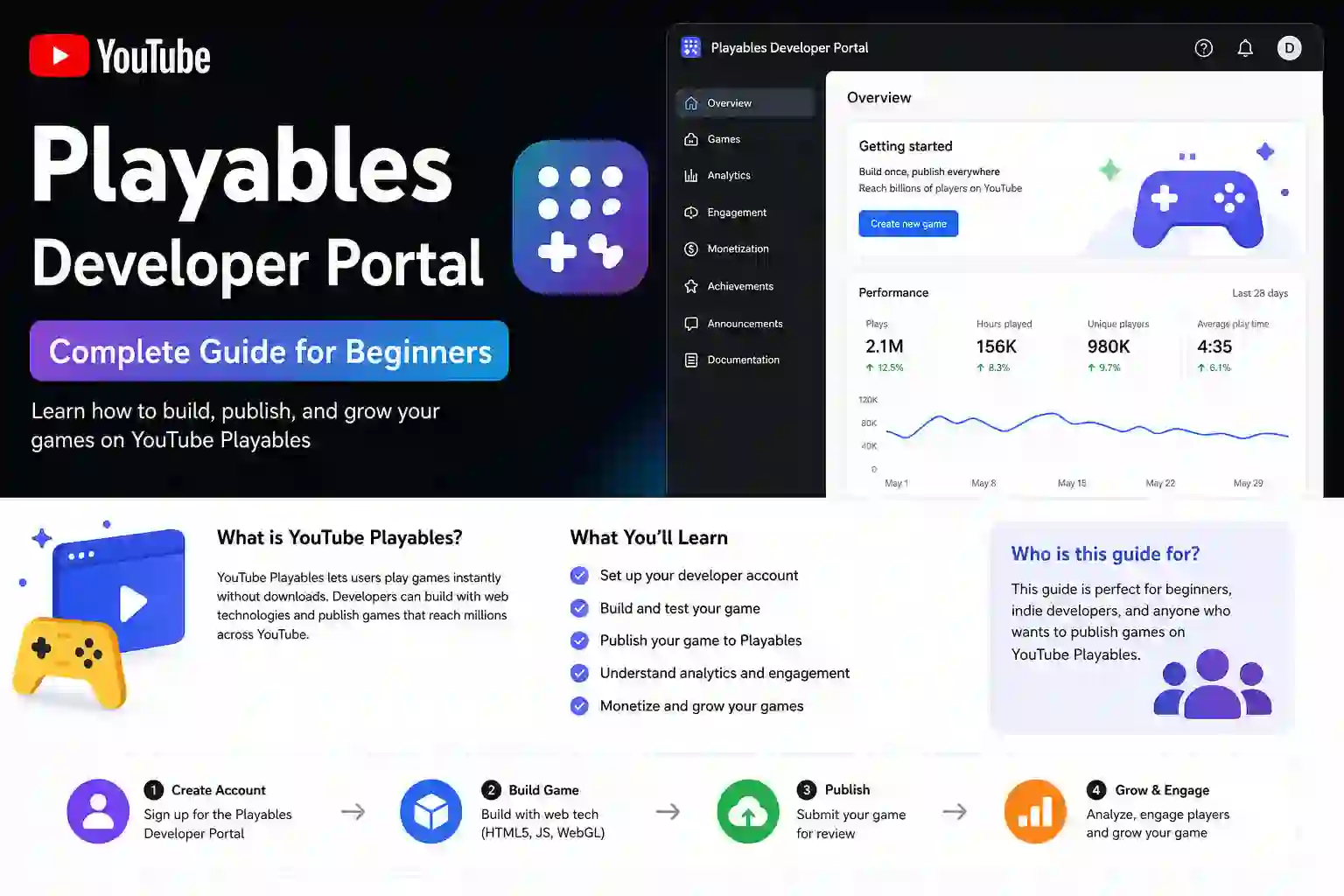
The YouTube Playables Developer Portal is where eligible developers can manage their Playables, prepare game releases, upload game files, add game information, test builds, configure supported monetization settings, and submit games for certification.
If you are new to YouTube Playables, the Developer Portal can look complicated at first. The good news is that the workflow becomes much easier once you understand how a game moves from a local HTML5 build to a tested and certified Playable.
This guide explains the process from beginner to advanced level, including the technical requirements, bundle-size limits, SDK integration, testing, accessibility, Trust & Safety, monetization, and certification steps you should understand before submitting a game.
Updated: September 19, 2026
Important: YouTube Playables requirements can change. Always check Google’s current documentation before submitting a production build.
What Is the YouTube Playables Developer Portal?
The YouTube Playables Developer Portal is the creator-facing environment used to manage Playable game releases.
Access is intended for eligible YouTube channels that have been onboarded to Playables and for users with the appropriate channel-manager permissions. Availability and portal features can change because Playables requirements and features continue to evolve.
You can use the portal to:
- Create and manage a Playable
- Upload a game bundle
- Add game metadata
- Upload required thumbnails
- Create releases
- Test game builds
- Review release information
- Configure available monetization settings
- Submit a release for certification
For the latest access information, always refer to Google’s official Developer Portal documentation.
Make Sure You Have Developer Portal Access
Before uploading a game, make sure your YouTube channel has been onboarded to Playables and that you have the required permissions.
You should also use a current browser such as Chrome, Edge, or Firefox when working with the development and testing tools.
If the Developer Portal is not available to you, do not immediately assume that something is wrong with your ZIP file. Access can depend on your channel’s Playables onboarding status and your permissions.
You should resolve access and permission issues before spending time debugging a game bundle that you cannot submit.
Prepare Your Game Before Uploading
Do not upload a ZIP file immediately after finishing development.
First, check the game against the current Playables technical requirements.
Some important limits and recommendations include:
| Requirement | Current guidance |
|---|---|
| Initial bundle | Must be under 30 MiB |
| Recommended initial bundle | Should be under 15 MiB |
| Total bundle | Must be under 250 MiB by default |
| Individual file | Must be under 30 MiB |
| Recommended individual file | Should be under 512 KiB |
| Saved game data | Must be under 3 MiB |
| Recommended saved data | Should be under 500 KiB |
| Total files | Maximum 8,000 |
| Loading/interaction | Should be under 5 seconds |
The distinction between MUST and SHOULD is important.
For example, the initial bundle must be below 30 MiB, while Google recommends keeping it below 15 MiB for a better loading experience. Similarly, the game should become interactive in less than five seconds, but that is presented as a recommendation rather than the same type of hard size limit.
What Does “Initial Bundle” Mean?
The initial bundle is not simply the size of your ZIP file.
Google measures the initial data downloaded from the beginning of page loading until the game calls gameReady. This means a game can have a larger overall package while still keeping the amount needed to start playing relatively small by loading non-essential content later.
For this reason, lazy loading can be useful for larger games.
Check Your Game Files and Folder Structure
Before creating the final ZIP, check your file structure carefully.
A simple HTML5 Playable might look like this:
index.html
game.js
style.css
assets/
audio/
Inside the game, references to other files should use relative paths.
For example:
assets/player.png
js/game.js
audio/jump.mp3
Avoid absolute paths because they may not work correctly in the Playables environment. Google also specifies restrictions on file-name characters. Files in the game package should use alphanumeric characters and the supported special characters _, -, and ..
Before uploading:
- Remove unused assets
- Remove development-only files
- Remove duplicate files
- Compress large images and audio
- Check JavaScript and WASM sizes
- Verify all file paths
- Check that the game does not depend on your personal website or another external server for required game assets
Your final ZIP should contain the actual files required to run the game.
Create a New Playable
Once your game is ready, open the YouTube Playables Developer Portal.
The exact interface can change, but the workflow generally involves creating or selecting a Playable and providing the required game information.
Prepare the following information before starting:
- Game title
- Genre
- Description
- Developer information
- Publisher information, where applicable
- Required thumbnails
- Game bundle
Save the draft when appropriate so you can return to it later.
Do not treat the first successful upload as the final submission. A game still needs to go through testing and certification.
Upload the ZIP Game Bundle
Your game should be packaged according to the current Playables requirements.
For example:
index.html
game.js
style.css
assets/
audio/
The ZIP should contain the files needed to run the Playable.
Before uploading, test the same package locally or through the available testing tools. Check that:
- The game starts correctly
- Assets load correctly
- There are no broken paths
- Audio files load
- The game does not depend on unavailable external resources
- The game can reach the
gameReadystage correctly
A successful ZIP upload does not mean the game has passed certification.
Uploading, testing, and certification are separate stages.
Add Game Metadata and Thumbnails
Your Playable listing needs accurate metadata and compliant visual assets.
Pay attention to:
- Game title
- Genre
- Description
- Developer information
- Publisher information
- Thumbnail requirements
- Accessibility information where applicable
Do not use misleading titles, descriptions, thumbnails, or metadata.
Your listing should accurately describe the actual game.
Accessibility information has also become more important in the current Playables requirements. Google added Game Accessibility Tags in August 2026 to help players discover games that match their needs. Developers should use appropriate tags, but must not select tags that inaccurately represent the game’s functionality or content.
Create a Playable Release
After completing your draft and uploading the required information, create a release.
The portal processes the uploaded build and provides status information while the release is being prepared.
Release creation and certification are different things.
A useful way to think about the process is:
Game files → Release → Testing → Fix issues → Certification submission → Review
If the game uploads successfully, that only confirms that the package has been accepted by that part of the workflow. It does not automatically mean the game meets all certification requirements.
Load the Playables SDK Correctly
If your game uses the Playables SDK, SDK integration needs to be handled correctly.
One important requirement is that the Playables SDK must be loaded before the game code runs.
You should also understand the difference between firstFrameReady and gameReady.
firstFrameReady
Call firstFrameReady when the first frame of your loading or splash screen is ready to be rendered.
gameReady
Call gameReady only when the game is actually ready for user interaction—for example, when the main menu or playable game state is ready.
Do not call gameReady simply because the HTML page has loaded.
A simplified example is:
// The first loading/splash frame is ready
ytgame.game.firstFrameReady();

// Later, after the game is ready for interaction
ytgame.game.gameReady();
Your actual implementation should follow the current Playables SDK documentation and the SDK version used by your project. Google’s integration requirements specifically distinguish these two notifications.
Test Your Game Before Certification
Once the release is ready, use the available testing tools and links provided through the Playables workflow.
Do not rely only on a normal Chrome desktop test.
Test your game across the environments relevant to Playables, including:
- YouTube desktop web
- YouTube mobile web
- YouTube for Android
- YouTube for iOS
A game that works perfectly in a normal browser can still have problems inside YouTube.
Pay attention to:
- Viewport size
- Screen resizing
- Touch input
- Mouse input
- Audio
- Pause/resume
- Loading time
- Memory usage
- Rendering
- Game state
- Device-specific issues
Testing on a real mobile device is especially useful for touch controls and performance.
Make Your Game Responsive
Your game should adapt correctly to supported screen sizes and aspect ratios.
Check:
- Touch controls
- Mouse controls where appropriate
- Responsive resizing
- Readable text
- Correct button placement
- Correct scaling
- No accidental input blocking
- No important UI hidden behind browser or device areas
Do not assume that one fixed desktop resolution will work everywhere.
Test portrait and landscape behavior according to the game’s design and the applicable Playables requirements.
The game should also maintain the correct state when its viewport changes.
Handle Pause, Resume and Audio Correctly
Pause and resume are not just optional polish features.
Your game should correctly respond to the Playables environment.
When the game is paused, make sure gameplay does not continue running in the background. Depending on your implementation, this can include:
- Game loops
- Audio
- Input handling
- Animations
- Network activity
- Rendering work
Resume the appropriate systems when the game receives the resume event.
For Playables advertising integrations, Google specifically requires correct handling of audio mute/unmute through isAudioEnabled and onAudioEnabledChange, as well as pause/resume through onPause and onResume.
Do not treat browser-level visibility events as a replacement for the Playables SDK integration requirements.
Optimize Loading and Performance
Passing the basic functional tests is only the first step.
Before certification, test the game on slower devices and different network conditions where possible.
Useful optimizations include:
- Compress large images
- Reduce JavaScript size
- Remove unused code
- Remove unused assets
- Use efficient sprite sheets or atlases
- Lazy-load non-essential content
- Reduce unnecessary network requests
- Keep memory usage under control
- Reduce the number of files where practical
- Load only what is required to start playing
Google recommends loading only the minimum data required to make the game interactive and loading additional content when needed.
Also keep an eye on memory. The current technical requirements include a maximum JavaScript heap size of 512 MB, and the game must not repeatedly cause serious errors or crash YouTube or the user’s software.
Review Accessibility
Accessibility should be considered during development instead of being added immediately before submission.
Google recommends that developers make a best effort to follow WCAG AA accessibility practices.
Depending on the game, consider:
- Readable text
- Sufficient contrast
- Clear controls
- Avoiding unnecessarily small touch targets
- Understandable UI feedback
- Audio alternatives where appropriate
- Controls that do not depend on a single ability where practical
Game Accessibility Tags
As of August 2026, Playables also support Game Accessibility Tags.
These tags can help players discover games with features that match their accessibility needs. Developers should select tags accurately. Misleading or incorrect accessibility metadata should not be used.
Review Trust, Safety and Content Rights
Before certification, review the game’s content carefully.
Playables must follow the applicable YouTube requirements and must not contain inappropriate content.
Games must not be specifically made for kids and must be suitable for a general audience aged 13 and older. Developers also need the necessary rights for third-party intellectual property, trademarks, music, and personality rights used in the game.
Important 2026 Duplicate Content Policy
This is an important update for developers.
On August 25, 2026, Google updated the Playables Trust & Safety requirements to add a duplicate-content policy.
The policy requires content to be original, authorized, or licensed and prohibits duplicate game builds.
In practical terms, do not simply copy another developer’s game and submit a minimally changed version.
If you use third-party:
- Characters
- Music
- Images
- Sounds
- Trademarks
- Game assets
- Other intellectual property
make sure you have the appropriate rights or license to use them.
Submit the Game for Certification
After testing and fixing issues, return to the certification/testing workflow.
Before submission, confirm:
- The final release is the build you actually tested
- The game loads correctly
- The game becomes interactive correctly
- SDK integration works
- Audio behavior works
- Pause/resume works
- Controls work
- Metadata is accurate
- Thumbnails are compliant
- Accessibility information is accurate
- Third-party rights are cleared
- No major reproducible bugs remain
Then submit the release for certification when the portal makes the option available.
Certification is a review stage. A successful upload does not guarantee certification.
If a submission fails, review the feedback, fix the identified issues, create an updated release, and follow the portal’s resubmission process.
What About YouTube Playables Monetization?
YouTube Playables can support in-game advertising through YouTube-provided advertising functions for eligible games.
However, developers should not assume that normal website advertising methods can simply be inserted into a Playable.
Google’s current monetization requirements state that:
- YouTube-provided advertising functions can be used for in-game advertising.
- Off-platform services cannot be used for in-game advertising.
- Off-platform services cannot be used to implement monetization.
- Off-platform services cannot be used for in-app purchases.
- If YouTube-provided advertising is enabled, the required monetization settings must also be configured in the Developer Portal.
- Games using YouTube advertising must correctly handle audio mute/unmute and pause/resume using the required Playables SDK functionality.
Therefore, do not add a normal third-party ad network to your Playable and assume it will work like a regular HTML5 website.
For current advertising formats and implementation details, check the latest official Playables monetization documentation before development.
Common Developer Portal Mistakes to Avoid
Here are some problems worth checking before certification:
1. Calling gameReady too early
If the game is still loading or showing a splash screen, it is not ready for user interaction.
2. Loading the SDK after the game code
The Playables SDK needs to be loaded before the game code.
3. Using absolute file paths
Use relative paths for files inside the game bundle.
4. Uploading unnecessarily large initial assets
A large initial download can hurt loading performance.
5. Testing only on desktop
Mobile web, Android, and iOS behavior can expose problems that are not visible on desktop.
6. Ignoring audio behavior
Especially when using YouTube-provided advertising, audio integration needs to be handled correctly.
7. Using misleading accessibility tags
Accessibility metadata should accurately describe the actual game.
8. Reusing another game’s build
The August 2026 duplicate-content policy makes this an important certification consideration.
9. Treating upload as certification
A successful upload or release creation is not the same as certification approval.
FAQs
1. Who can access the YouTube Playables Developer Portal?
Access is intended for eligible YouTube channels that have been onboarded to Playables and users with the required permissions. Availability can change as Playables continues to evolve.
2. What is the maximum size of a Playables game bundle?
The total game bundle must be under 250 MiB by default. The initial bundle must be under 30 MiB, while Google recommends keeping the initial bundle below 15 MiB.
3. What is the difference between firstFrameReady and gameReady?
firstFrameReady is used when the first loading/splash frame is ready to render. gameReady should be called only when the game is ready for user interaction.
4. How long does Playables certification take?
Do not plan around a guaranteed certification turnaround unless Google provides one for your particular workflow. Release creation and certification are separate stages, and the review process can change.
5. Can I monetize my Playable?
Eligible Playables can use YouTube-provided advertising functions. Off-platform advertising, off-platform monetization services, and off-platform in-app purchases are currently not supported.
6. Can I use a normal third-party ad network?
No. Current Playables monetization requirements do not support in-game advertising through off-platform services.
7. Does my Playable need touch and mouse controls?
Your controls should be appropriate for the supported environments and devices of your game. Test the game across desktop web, mobile web, Android, and iOS rather than assuming that one input method will work everywhere.
8. Are Playables suitable for kids?
Playables must not be specifically made for kids and must be suitable for a general audience aged 13 and older.
9. Can I use another game’s assets in my Playable?
Only when you have the appropriate rights, authorization, or license. Google’s August 2026 duplicate-content policy also prohibits duplicate game builds.
10. Do Playables support accessibility tags?
Yes. Game Accessibility Tags were added to the Playables requirements in August 2026. Developers should use accurate tags that genuinely represent the game’s accessibility features.
Final Checklist Before Certification
Before submitting your Playable, go through this checklist:
- ZIP bundle is valid
- Initial bundle is under 30 MiB
- Initial bundle is preferably under 15 MiB
- Total bundle is under 250 MiB by default
- Individual files are under 30 MiB
- File paths are relative
- File names follow the supported character rules
- Total file count is within the limit
- SDK is loaded before the game code
firstFrameReadyis called at the correct stagegameReadyis called only when the game is interactive- Game works on supported desktop browsers
- Mobile web has been tested
- Android has been tested
- iOS has been tested
- Touch controls work correctly
- Mouse controls work where appropriate
- Game resizes correctly
- Pause/resume works
- Audio mute/unmute works correctly
- No repeated serious crashes or errors
- Memory usage has been checked
- Metadata is accurate
- Thumbnails are compliant
- Accessibility information is accurate
- Accessibility tags are not misleading
- Third-party IP rights are cleared
- Game is not a duplicate build
- No unsupported off-platform advertising is included
- Monetization settings are configured if YouTube advertising is enabled
- Test Suite checks have been completed
Final Thoughts
The YouTube Playables Developer Portal is not simply a place to upload a ZIP file. It is part of the complete workflow for preparing, releasing, testing, and submitting a game for certification.
For beginners, the safest approach is to think about Playables requirements during development rather than waiting until the end. Keep the initial bundle small, use relative file paths, load the SDK correctly, call gameReady at the right time, and test the game on the environments where players will actually use it.
For advanced developers, performance, memory usage, SDK integration, responsive design, audio behavior, accessibility, content rights, and certification testing should all be part of the development process.
The Playables requirements are also changing over time. In August 2026, Google added Game Accessibility Tags and a duplicate-content policy, so developers should always check the latest official requirements before submitting a new release.
The goal is simple: build an original, technically stable, accessible, properly licensed, and well-tested game before you click Submit for Certification.